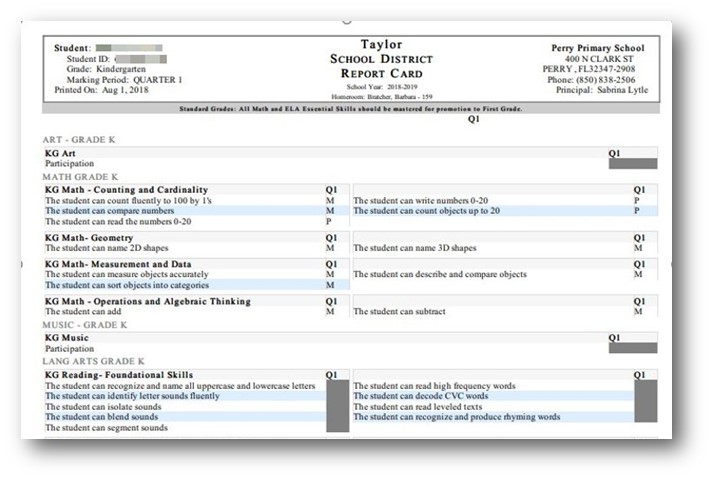
Standards Based Report Cards
Using Standard Based Report Cards allows teachers to evaluate students in each class using individual standards. Standards are created by the district, assigned a marking period and attached to student courses. A Standards Based Report Card is created to display the standards and the standard grades for each student.
In this document we will explain how teachers can posts grades for standards.
Standards for Teacher - Gradebook
If a teacher wishes to grade standards in the gradebook, when they create an assignment, they have the option to select the standards that they will be assessing through the assignment. Otherwise the teacher can choose to just enter standards manually when they post standard grades.
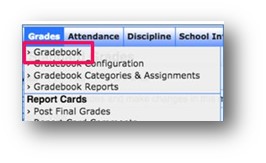
To include standards in your gradebook, navigate to the Grades tab and select Gradebook.
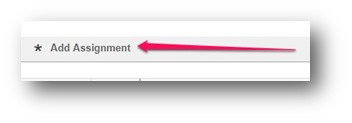
Once in the gradebook, click Add Assignment.
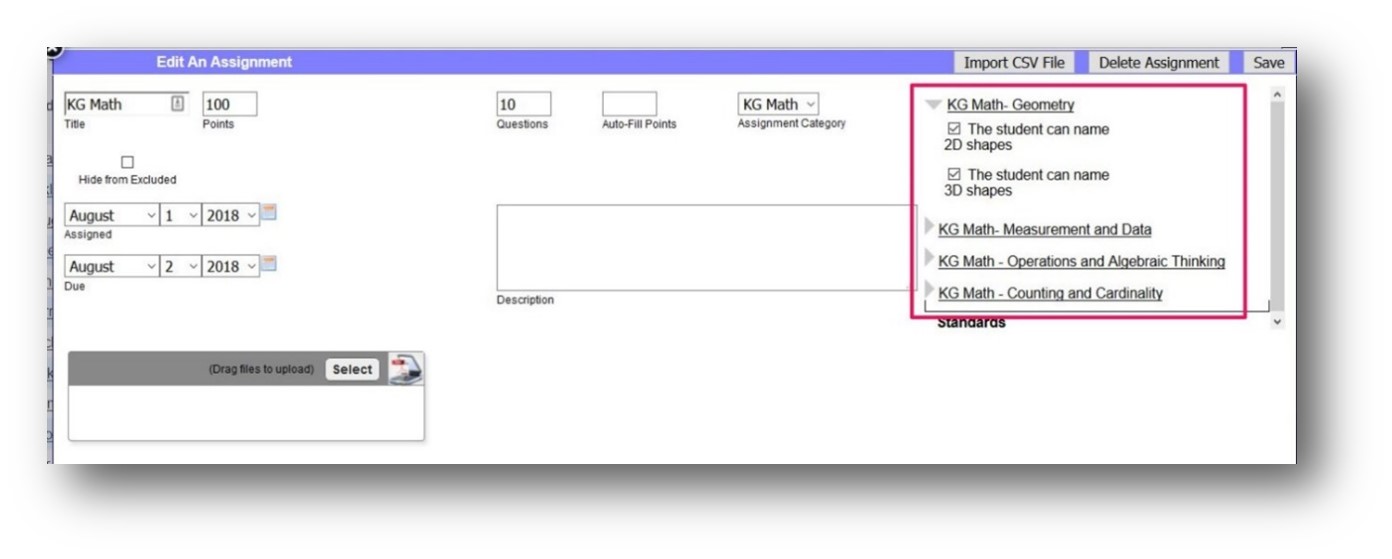
From Add Assignment the Standard Subjects are listed on the right. Select a Subject to view and then select the individual standards to assess with each assignment. Multiple standards can be attached to an assignment.
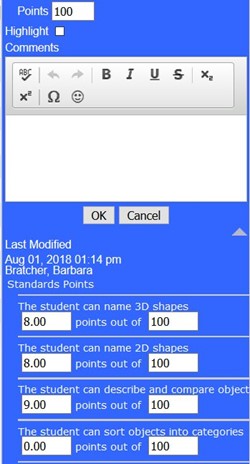
After the assignment has been created, the standards attached can also be viewed by double clicking in the grade field in the Gradebook, which will open the assignment comments pop-up.
Click the grey arrow to display and evaluate the standards attached to the assignment:
Post Standard Grades
Once the standards grade posting window is open for a marking period, the teacher is then able to post final standard grades for the standards report card.
At the top of Focus, the teacher should select the applicable course and marking period for the grades they need to post.
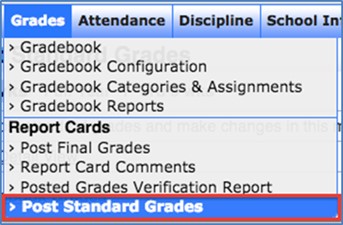
Then from the Grades menu, select Post Standard Grades.
From here select the applicable marking period from the grey sub-menu at the top.
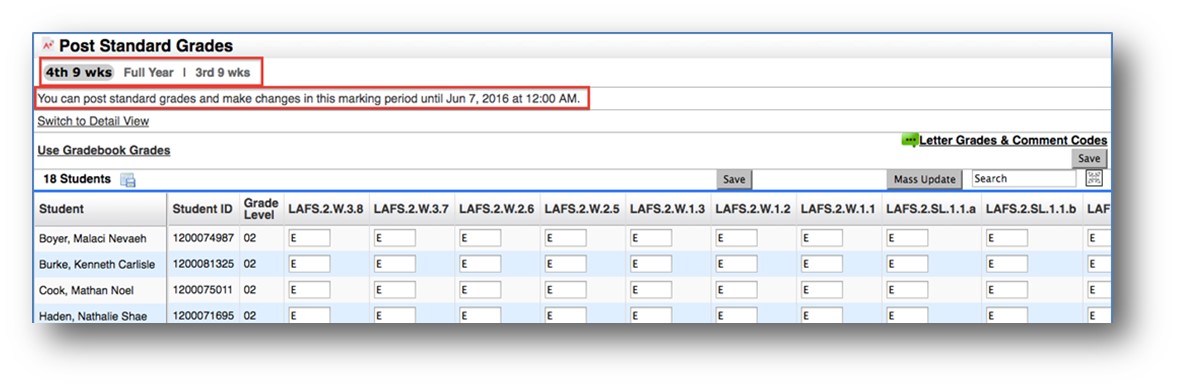
If the teacher used standards in their gradebook they can use the option to Use Gradebook Grades.

When this link is selected, the grade for each standard will populate based on the average of assignments in which the standard was attached. If the standard was not attached to any graded assignments, the grade will remain blank or retain the value previously posted through Post Standard Grades.
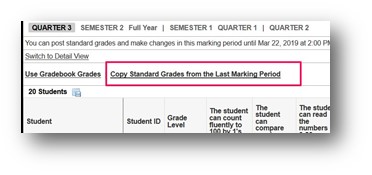
After the first marking period, Teachers will also have the option to copy the standard grades that were given in the previous marking period by clicking the link that says Copy Standard Grade from the Last Marking Period.
When first navigating to the Post Standard Grade screen, the students are listed in Simple View. To view more Standard data, there is an option to Switch to Detail View.

When selected, several checkbox options display:

Along with a student list, note the gray triangle icon next to each student’s name. When the icon is selected, the teacher can enter grades while viewing all the additional Standard info that was selected. This is especially helpful when the Standard title is stored as values such as SC.3.P.9.1.
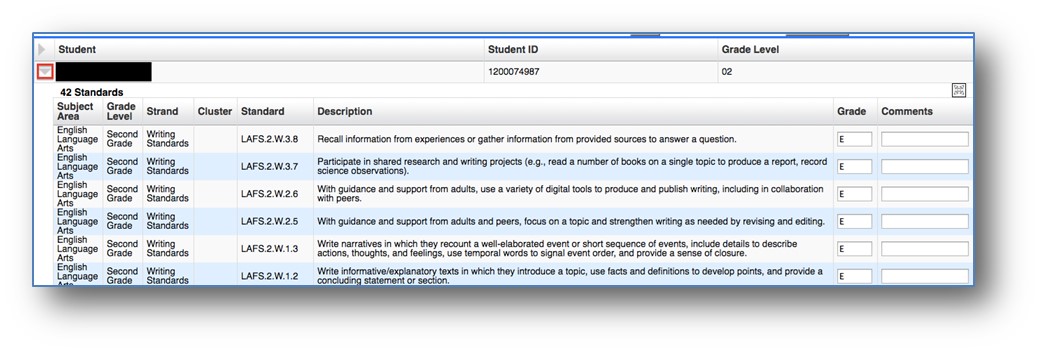
Once all of the standards that have been evaluated have grade, click the Save button.
Report Cards
Report Cards will display all of the standards that have been created and assigned to the student’s schedule. Graded standards will display with a grade while ungraded standards will show a grey box.