To Access Gradebook Reports
Option 1:
Select a section from the course section drop-down. Go to the Grades menu and select Reports.
Option 2:
Select a section from the course section drop-down. Go to the Grades menu and select Gradebook. Select Reports from the upper right corner. This will open a pop-up with the reports.
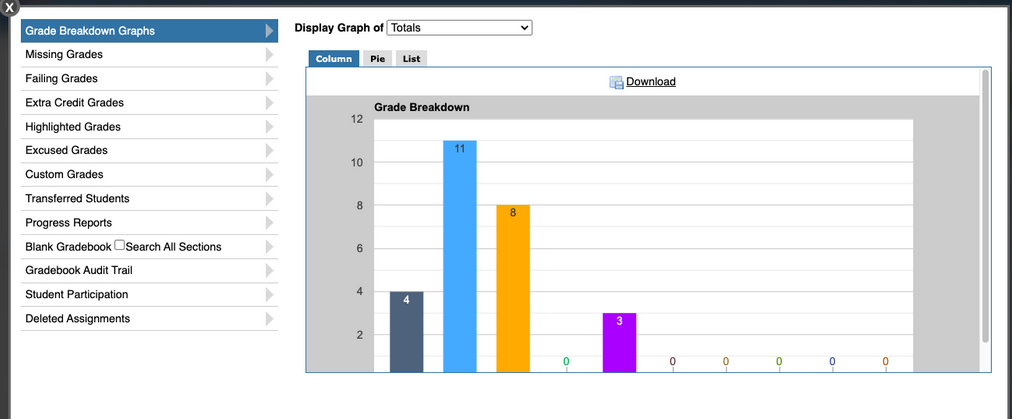
Grade Breakdown Graphs
This report displays a grade analysis for each section. The Display Graph of drop-down will default to a column graph of the grade breakdown for overall grades in the section selected.
Select the category or individual assignment from the Display Graph of drop-down to change the data that is displayed. These breakdowns can be organized into a Column graph, Pie graph or a List. The image of the Column and Pie graph can be downloaded by clicking the download button above the graph.
Missing Grades Report
The Missing Grades report displays a list of students who are missing grades in a particular section, as well as each assignment that they are missing and the assigned and due dates for each assignment.
This report is helpful during Grade Posting for marking period grades, as grades cannot be posted en masse if the gradebook is incomplete.
Click Show All Courses to display missing grades for all students in all sections. Student grades and comments can be entered directly from this screen. Enter all grades/comments and click Save
OR
Enter a grade and/or comment and hit enter; the grade auto saves to the applicable gradebook section and the student is removed from the list.
Failing Grades Report
The Failing Grades report displays a list of all students that have a failing grade.
Click the Threshold box to select the appropriate percentage considered failing. These options pull the lowest percentage that gives credit as defined in the district’s grading scale assigned to the course, then the next two +10 values. If these values do not look correct, please notify your MIS department.
Check to Include Missing Grades in the report if applicable. Student grades can be updated and comments can be entered directly from this screen. Be sure to click Save in the upper right corner after making any changes.
Extra Credit Grades Report
The Extra Credit Grades report displays a list of students who have earned more points than the total points possible on at least one assignment. Note: This is not our recommended way of entering extra credit as it can result in students earning an average over 100%. This report is helpful to double check grades because it is easy to type an incorrect number of digits (a 200 instead of a 20). Student grades and comments can be entered directly from this screen. If a grade is adjusted to be 100% or less the grade will fall off of the report. Be sure to click Save in the upper right corner after making any changes
Highlighted Grades Report
The Highlighted Grades report displays grades that have been highlighted in the gradebook. Grades can be highlighted in the gradebook by double-clicking the grade and selecting the Highlight box. This report will capture any comments that were added to an assignment grade that has been highlighted.
Student grades and comments can be entered directly from this screen. Be sure to click Save in the upper right corner after making any changes
Excused Grades Report
The Excused Grades report displays details for any assignment from which a student has been excused. Grades are denoted as excused by the addition of one of the Custom Grades that is flagged as Exclude, with score of * or X.
Student grades and comments can be entered directly from this screen. If a numerical grade is entered in place of the Custom grade, the student will be removed from this report after the Save button is clicked or the Enter/Return key is hit. Be sure to click Save in the upper right corner after making any changes
Custom Grades Report
The Custom Grades report displays which students have assignments marked with the district-defined (or teacher-defined if allowed) custom grades.
Transferred Students Report
The Transferred Students Report displays students who have transferred from within the school and/or the district and into the sections assigned.
- Search for a specific student in the Search box or view a list of all students who have transferred into the section by clicking Simple List.
- Select Search All Sections to view transfer students across all sections.
- Click Search. Click on the applicable student’s name.
-
-
A list of previous courses, along with the section number, school, gradebook score, enrolled and dropped date will display.
Click on the section link to see the individual assignments and grades completed in that section.
Grades from the former class can be used to assign grades in the new class.
Optional Transfer Grades Feature
The Transfer Grades feature helps teachers manage grades when students change classes. It allows transferring grades from one section to another, adjusting points based on the transfer date, and mapping weighted categories if applicable. A transfer assignment is automatically added to the gradebook, streamlining the process and ensuring accurate grading for transferred students.
More information on how to use this feature can be found HERE.
Progress Reports
Teachers can generate and print Student Progress Reports for students using the Progress Reports option.
Search for a specific student in the Search box or use More Search Options to locate a group of students meeting a specific user-defined criteria.
There are a variety of options and filters that can be included on the Progress Report.
A Letterhead Template can be specified.
Options such as the Gradebook Notes, Assignment Description, Attendance Summary, and the ability to show only Missing, Failing or Excused assignments can be selected.
Click Continue.
Select the students for whom to generate progress reports or check the box at the top of the list to select all students.
Clicking Preview will open the progress reports in a new window.
Blank Gradebook Report
By selecting the Blank Gradebook in Gradebook Reports, a PDF of a blank gradebook will automatically be generated.
Selecting Search All Sections will give a list of the students in all sections in alphabetical order; it does not sort by sections.
Use the back button in the browser to return to Gradebook Reports.
Gradebook Audit Trail Report
This report displays changes that have been made to student grades in the gradebook. This is helpful when there is a dispute over a grade change. The teacher can review the Audit Trail to as documentation of when a specific change occurred.
Specify the time period by defining the dates in the calendar during which the Audit Trail should be displayed.
Check to Include NG Grade Changes; this will show grade changes as well as new grades that have been entered.
Student Participation Report
This report shows Student Participation in a variety of ways. The top tabs display the reports available. Each tab has a legend to help identify parts of the graphs.
Participation tab
The Participation tab displays a graph of the percent of assignments each student has completed successfully, unsuccessfully, or not at all.
Click Legend to display the definitions of the color codes.
Assignments tab
The Assignments tab displays the percent of students who turned each assignment in on time, late, or not at all.
Grades tab
The Grades tab displays each assignment within the teacher’s gradebook.
The thin vertical whisker extends from the lowest score for any student in the course to the highest score.
The thicker bar extends from the 25th percentile to the 75th, with the median marked.
Deleted Assignments Report
This report lists any assignments that were deleted in the gradebook for the section selected in the course drop-down. This report allows teachers to restore the assignment and grades into the gradebook.
The table lists the Assignment Title, Deleted Date, Term, and # of Grades that were deleted from the gradebook.
Click Restore to reinstate the assignment and assignment grades to the gradebook.
Click Yes in the confirmation pop-up.