 Overview
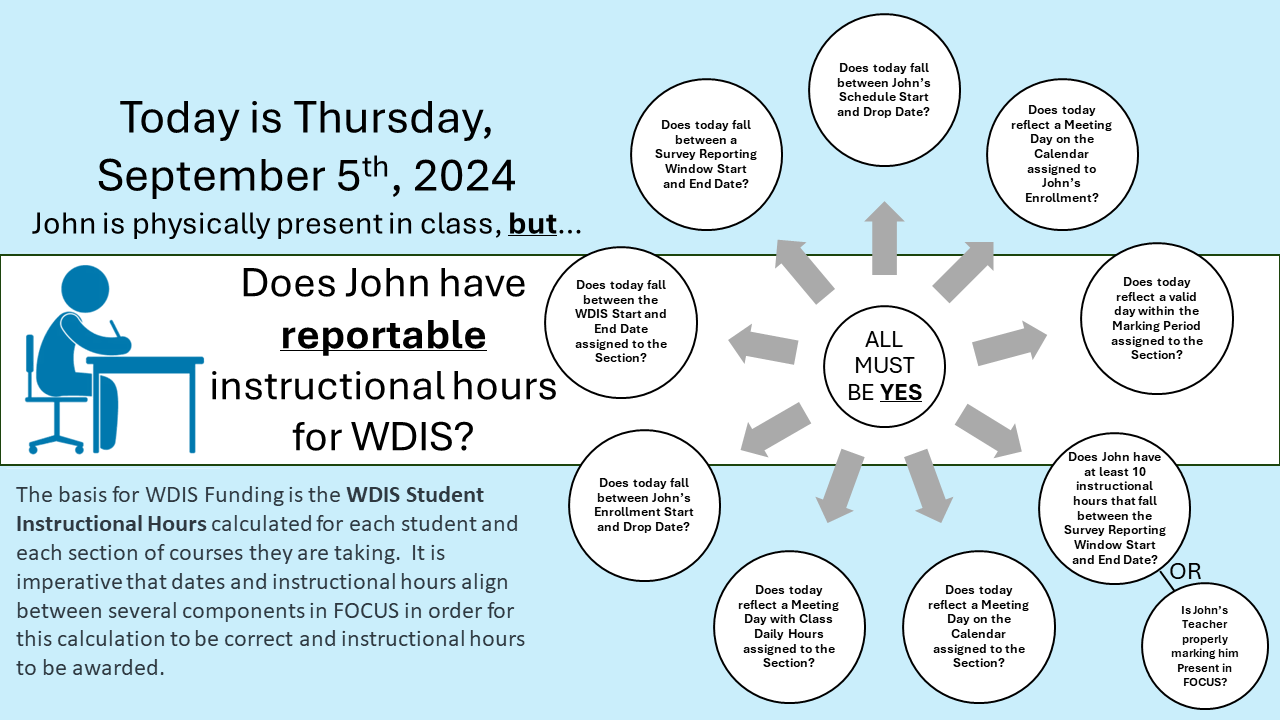
The basis for WDIS Funding is the WDIS Student Instructional Hours calculated for each student and each section of courses they are taking. This article will cover everything you need to know about how instructional hours are calculated and how the schedule is setup in Focus for this calculation to occur correctly.
Note: Focus only counts days that have occurred, it will not count future days. Keep this in mind whenever you view hours on the student schedule or are sending a WDIS Survey.
WDIS Student Instructional Hours Formula = (Total number of class meeting days) X (Daily hours)
The basis for WDIS Funding is the WDIS Student Instructional Hours calculated for each student and each section of courses they are taking. This article will cover everything you need to know about how instructional hours are calculated and how the schedule is setup in Focus for this calculation to occur correctly.
Note: Focus only counts days that have occurred, it will not count future days. Keep this in mind whenever you view hours on the student schedule or are sending a WDIS Survey.
Focus calculates the WDIS Student Instructional Hours as:
(Total number of class meeting days) X (Daily hours)
for each survey window.
Sounds simple enough right? Well to really understand how this works, we first need to understand how each component of the formula is determined.
Component 1: Total Number of Class Meeting Days
Section Fields
Under Scheduling> Courses & Section at the section level, there are five fields that impact the class meeting days.
- Section Field 1: Marking Period - The Marking Period is defined in Setup > Marking Periods and this is where you include a start and end date for the term. The term is then assigned on the section in Scheduling > Courses & Sections. If a date does not fall within the Start Date and End Date of the term assigned on that section, that day will NOT count for a class meeting day.
- Section Field 2: Calendar - The calendar is the the next filter Focus looks at to determine class meeting days. Each day that a class meets must be checked on the individual calendar assigned to the section. The days are checked in Setup >Attendance Calendar.
- Section Field 3: Meeting Days - The actual days of the week which the class meets. Note: the days of the week is an additional filter on the class meeting days. This means if a Wednesday is checked on the Attendance Calendar but "W" is not checked in the section Meeting Days, that day will NOT count for a class meeting day.
- Section Field 4 & 5: WDIS Class Start Date & End Date - Still on the section, in the Vocational WDIS tab there are two fields WDIS Class Start Date and WDIS Class End Date. If a date does not fall within this range, that day will NOT count for a class meeting day.
Enrollment Fields - Enrollment Date & Drop Date
Students > Student Info > Enrollment is where the student's enrollment in the school is defined. Here is where you entered an Enrollment Date when the student began at your school and will later enter the Drop Date when the student withdraws from your school. In some cases students may be enrolled several times within a year. If a class meeting day does not fall within any of the Enrollment Date and Drop Dates listed for the applicable school year, it will NOT count towards the total number of meeting days in the calculation, regardless of all other fields covered in this article.
Schedule Fields - Enrolled and Dropped dates
In Scheduling> Student Schedule you add the individual sections to the student's schedule. Here you will further filter the total number of meeting days by specifying an Enrolled and Dropped date for each section. In the example below, the student dropped the class on 9/14/2022 so any meeting days that are after that date will NOT count towards the total number of meeting days in the calculation, regardless of all other fields covered in this article.
Note: there is an additional field Funding End Date that can be used to override the Dropped date on the schedule record. If there is a Funding End Date entered Focus uses that and ignores the Dropped date.
Component 2: Daily Hours
The Daily Hours is what defines the number of hours the class meets for during each meeting day. This is defined at the section level and the schedule level.
If a student in the class is scheduled to meet on Monday for 2 hours and Wednesday for 3 hours, you would have to setup two separate sections for this in Focus because there can only one set of daily hours per combination of student and section.
However, if one student is scheduled to come to the class for 1 hour each day but another student is scheduled to come to the class each day for 2 hours, that will NOT require a separate section as you can manually change the the Daily Hours on the individual student's schedule.
Section Field
Under Scheduling> Courses & Section at the section level on the Vocational/WDIS tab there is a field Class Daily Hours. We recommend setting this field to the most common number of hours that students are scheduled to meet in the class. Keep in mind this can be adjusted on each student's schedule.
Schedule Field
In Scheduling> Student Schedule when you add the individual sections to the student's schedule, you can override the Daily Hours that were assigned at the section level so they only apply to that individual student's assigned section.
Component 3: Survey Window
When we transmit the WDIS Student Instructional Hours to FLDOE, the hours are specific for the Survey period being reported. In some cases a course may span multiple survey periods. For example, a Full Year course could span Survey W (Fall) and Survey S (Winter). In this case, we will send the hours associated with Fall Window in Survey W and the hours associate with the Winter Window in Survey S.
The Survey Window is defined by MIS staff at the district level under Florida Reports > Florida Reports Setup > Survey Dates. MIS staff will enter the dates for each of the surveys:
- Window W– WDIS Fall Term start and end date as window (these dates also applies to preliminary Survey G)
- Window S– WDIS Winter Term start and end date as window (these dates also applies to preliminary Survey X)
- Window F– WDIS Summer Term start and end date as window (Typically districts that offer a WDIS program during the Summer set it up in the same school year they reported the previous Survey W & S under. If you do this you must check the box under Florida Reports Setup > District Options > WDIS - Pulling Survey F YYYY-ZZZZ from current school year XXXX-YYYY) for both the year the data is in as well as the following year to avoid conflicting settings.
If a class meeting day does not fall within the window for the Survey you are sending, that day will NOT count towards the total number of meeting days in the calculation for that Survey, regardless of all other fields covered in this article.