The Teacher Gradebook allows the user to create gradebook categories. In this document, we will cover how to create, edit, and delete categories. However, it is possible the categories are created and locked at the district level.
Prior to setting up gradebook categories, be sure you have already read our article on Gradebook Settings. You should determine and set if your gradebook will be weighted by categories before proceeding.
Create Assignment Categories
In order to create assignments, it will be necessary to create at least one Gradebook Category. Categories can be created in the gradebook whether or not they will be weighted. If the setting to use weighted categories is selected, the weights must total 100% or an error message will display in the Gradebook and on the Gradebook Assignments screen.
Create a New Category
To create an assignment in the gradebook, at least ONE gradebook category must be created.
If configuring separately, select a course section. Go to the Grades menu and select Gradebook. Click Category in the upper left corner.
The gradebook table slides to the right and a list of current categories (these might be district defined) displays on the left. If there are NO categories, a message will appear to Please create at least one category.
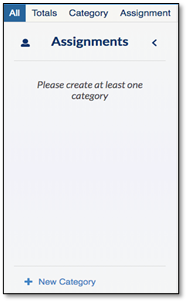
Click New Category at the bottom. A pop up will display with options to configure the category.
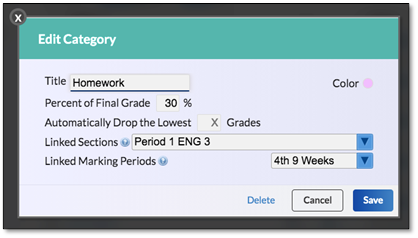
Enter a Title for the category. If gradebook categories are not typically used to organize assignments, create a generic category called “Assignments”.
Click Color to display the color options and to select the color for the category (optional). This color will show in the column header for each related assignment.
Select Percent of Final Grade. This option will only display if Weight assignment grades by category was selected in Gradebook Settings. It is important to make sure all category weights add up to 100% prior to creating assignments in the gradebook.
Enter a value for the number of dropped grades in the Automatically Drop Lowest Grades box (optional). Using this option will automatically drop the lowest grade(s) of the number of assignments for each class section assigned to this category and marking period. These will appear as gray values in the gradebook. Warning: Typically teachers just drop 1 lowest assignment at most if any are dropped. Be careful you do not enter the percentage weight into this box as it can result in all assignments being dropped from the students averages.
In the Linked Sections drop-down, check the boxes that identify which other classes should have this category in the gradebook as well. Clicking the Check All box will assign this category to all classes. Note: If planning to add assignments to more than one class, then the category will need to be added to those classes. The sections of the same course are checked by default when adding categories regardless of whether Add All Assignments to Each Section of Your Course by Default is selected in configuration.
In Focus every quarter/9 week term has their own gradebook by default. If you would like to have the same category in subsequent quarters/9 weeks, under the Linked Marking Period drop-downs check the boxes of the quarters/9 weeks to add category. Note: The current and subsequent quarters/9 weeks will be checked by default.
Click Save.
The category will now display on the left side of the screen under Assignment Categories.
If using weighted categories, this process will need to be repeated until the category weights equal 100% in order for the running gradebook grade to calculate correctly.
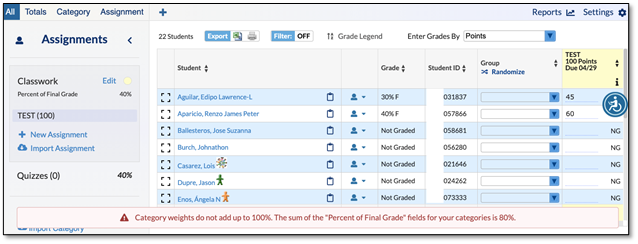
If Weight Grades by Assignment Category is enabled, there will be an error message at the bottom of the screen until the categories add to 100% on this screen. This warning will also display in the Gradebook.
Import (copy) a Category
The Import a Category feature allows the teacher to use a Category already created for another section, previous marking period, or previous school year.
Select the section to which the category(ies) will be imported. Go to the Grades menu and select Gradebook. Click Category in the upper left corner.
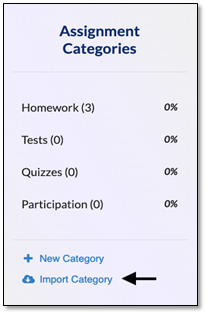
Click Import Category. A pop-up will display to select the Category to import. Use the drop-downs to select the Year, Section, Quarter, and Category.
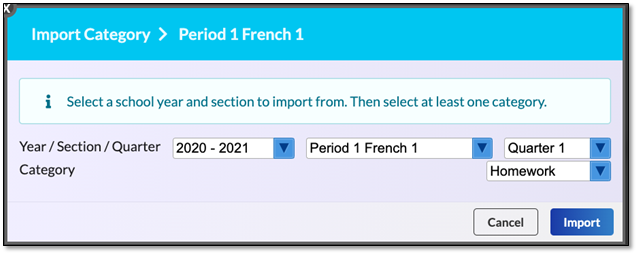
Note: At least one Category must be selected.
Click Import.
Edit Assignment Categories
Select a course section. Go to the Grades menu and select Gradebook. Click Category in the upper left corner. Click on the Category to be edited.
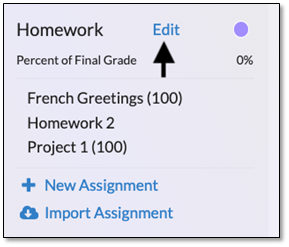
Click Edit. On the pop-up, make any necessary edits. Click Save.
Warning: Do NOT deselect sections or previous marking periods on this screen unless the intent is to remove the category along with the assignments and grades from the section or previous marking period. A warning will display if attempting to unlink a section or previous marking period with assignments and grades. If the category should truly be unlinked from a section containing assignments, the assignments will either need to be deleted or moved to another category.
For more details, view the sections for Moving an Assignment to a Different Category and Deleting Assignments in the Gradebook Assignments article.
A pop-up box may appear indicating the category was created in multiple sections and/or marking periods. Click to choose which gradebooks and/or marking periods to apply the changes.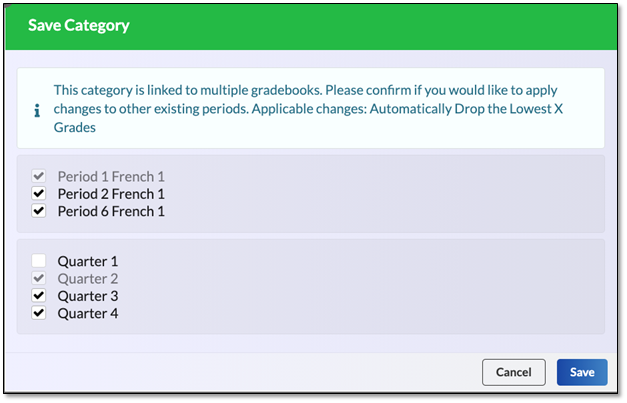
Info: The current section and marking period (as displayed in the course section and marking period drop-downs) will be checked and cannot be unchecked. Previous marking periods will be deselected by default.
Alert: If making changes to the category weight or to the number of grades to automatically drop for a previous marking period, this will cause a discrepancy between the Posted Grade and the Gradebook Grade.
Click Save.
Delete Assignment Categories
Categories can only be deleted if there are no assignments in the category. Click on the category to be deleted. Click Delete on the popup.
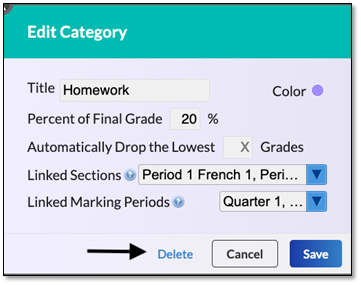
A pop-up will then display to confirm deletion of the category. If the category was added to more than one section, deselect any sections from which the category should not be deleted.
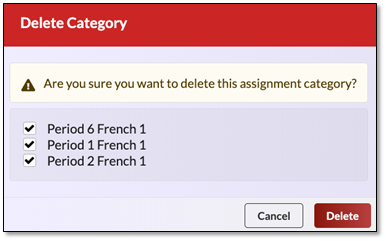
Warning: Categories with assignments and grades cannot be deleted. If attempting to delete a category with assignments and grades, an error will appear. If a category containing assignments needs to be removed, either move the assignment(s) to a different category or delete the assignment.
For more details, view the sections for Moving an Assignment to a Different Category and Deleting Assignments in the Gradebook Assignments article.