MIS Requests Setup Process
There are a few options that MIS staff should review prior to beginning requests.
Step 1: System Preferences
The system preferences related to scheduling/requests must be set each year prior to the start of scheduling. This is often done during the rollover process. This must be done in the year you are scheduling for (next year)!
Below we highlight the preferences that affect scheduling requests. To access this area go to Set Up > System Preferences > Scheduling
*Do not check the box that allows students to enroll themselves in classes (this is for post-secondary only)
- Allow students to enter course requests starting BLANK - This preference controls when the request period for students begins. This preference should be set in the upcoming school year. If the date is null or in the future the class requests screen cannot be edited by students. If you enter this in the tab Default School Preferences it will apply to all schools or you can enter it school by school in the School Preferences
- Prevent students from requesting courses in course subjects already requested by an administrator - Select the check box to prevent students from entering a course request if an administrator or teacher has already entered a request for that graduation subject (the graduation subject short name exists in the Graduation Subject Area, Graduation Subject Area 2, or Graduation Subject Area 3 fields in the Course Catalog for the course). This affects the following graduation subject short names: Math - MA A1 GE, Social Studies - SS AH WH EC AG, Science - SC EQ PH CH, English – EN
- Teachers Approve Course Requests - This preference allows teachers to approve course requests entered by students.
- Allow Teachers to Override Automatic Course Requests - Select the check box to allow teachers to change the course request added by Automatic Course Requests for a student on the Next-Year Schedule Requests screen.
- Hide Schedule Requests - Use these checkboxes to hide course requests for incoming students, existing students, incoming parents, and existing parents.
- Maximum number of Next-Year Schedule Requests - Enter the maximum number of requests teachers can enter per student on the Next-Year Schedule Requests screen
- Max Number of Requests - Enter the maximum number of requests that can be entered for a student. Students entering their own requests will receive an error if they try to request more than the maximum. Administrators will receive a warning that can be overridden.
- Max Number of Credits in Requests - Enter the maximum number of credits in requests that can be entered for a student. Students entering their own requests will receive an error if they try to request more than the maximum. Administrators will receive a warning that can be overridden.
Step 2: Student Profile Permissions
If you would like to allow students to enter requests you must make sure their profile has permission to this option.
To update the student profile go to Users > Profiles Select Students from the Role pull-down, select Students from the Profiles pulldown, and then click Submit.
The student profile permissions will display. Under My Information make sure the permission for Class Requests is checked.
Step 3: Setting Course Flags and Global Alternates for Student Requests
Focus requires you to flag any courses you would like the students to have access to request. Set these flags prior to the students gaining access to the request screen.
To set the course flags navigate to Scheduling > Courses and Sections > Select the subject where the course is stored > then select the course you would like to flag.
Locate the field Allow Students to Request this Course, click the checkbox to select, and click save. Do this for each course you would like students to see as an available choice on the request screen.
Global Alternates
Also located on the course record are the fields Alternate Course 1, Alternate Course 2, and Alternate Course 3. These fields allow global alternates to be designated for the course. When attempting to schedule the student via the Scheduler or Auto-Schedule, the system will first consider the individual student's alternate requests as set in Student Requests. If the student's alternate requests cannot be fulfilled, the system will look to the alternate requests set on the course.
These alternate course sections must be made prior to adding student requests.
Student's View
Students can access request entry by logging into Focus and selecting My Information > Class Requests.
Students MUST be in the upcoming year to enter class requests. If you are in the wrong year you will get a pop-up message asking them to move to the correct year. (example pop-up below)
Once in the correct year, you will see the two requests entry sections below:
There are two ways to add individual student’s requests in Focus: quick list and request summary.
Option 1: Request Summary Entry (top of page)
You can add individual student’s requests from the summary screen at the top of the page.
- Click on the pull-down menu labeled Course at the top of the summary block.
- The courses listed here are sorted alphabetically. You can type a course title or number into the filter box to search for the course you would like to add.
- To save the course request hit Enter on your keyboard.
-
. To add alternate requests for a specific course, select a course in the Alternate Course 1, Alternate Course 2, and Alternate Course 3 fields.
If a primary course request cannot be scheduled, the system will attempt to schedule the Alternate Course 1. If the Alternate Course 1 cannot be scheduled, the system will attempt to schedule the Alternate Course 2, and so on.
- To enter elective alternate course requests for the student instead of having to designate alternates for each individual course, navigate to the Elective Alternate Course Requests table.

6. In the blank row, select the alternate Course.
The Priority field defaults to 1 for the first alternate course request entry, 2 for the next alternate course request entry, etc.
Press Enter to add the row. If needed, adjust the Priority numbers for the alternates.
7. At the top of the screen, select Allow Elective Alternates next to the courses that can be replaced by the Elective Alternate Course Requests.

8. Click Save.
Option 2: Quick List Entry (bottom of page)
To use the quick list pull-down menu from the request screen, follow the steps below.
- Select the pull-down next to the graduation subject of the course(s) you would like to add as a request
- You can use the filter to locate the course by typing in the course title or number.
- Click the small box next to the course(s) you would like to add
- Click Save.
Once you have added the request you will see the course request displayed in the student course request summary at the top of the page as well as a green checkmark next to the subject area of the course request you added.
Admin View
Request Fields
There are several different fields associated with course requests, below is an explanation of each field.
Credits Column
This is a read-only field. The credits for the course will auto-populate after adding the request if defined in the district Course Catalog.
If there is a value in the Total Credit column in the Course Catalog for that school year, that value will display. If there is no value in the Total Credit column, then the value in the Credits per Course column will display (which pulls from the Course Code Directory for that school year). If there is no value in either the Total Credit column or the Credits per Course column, and there are no records for that school year in the Course Code Directory, then it will look to the Course Code Directory of the previous school year for a value. If there is no value found anywhere listed, then the request will display as 0 credits.
Schedule First
Select the check box if the Scheduler should attempt to schedule this request first before all other requests not marked as Schedule First.
Don't Schedule
Select the check box if the Scheduler should not schedule this course request.
Allow Elective Alternates
Select the check box to allow this course to be replaced by an elective alternate request from the Elective Alternate Course Requests table if it cannot be scheduled. If no courses have this option selected, the Elective Alternate Course Requests table will not be considered when scheduling the student.
Term
If a student will not be enrolled for the full length of the course, select the Term. For example, this may be used if the student only needs one semester of a full year course.
Inclusion
Select the Inclusion check box if the student needs to be scheduled into an inclusion section as well as the primary section. When the student is scheduled, the system will look for sections that were set up with an inclusion section in Courses & Sections, and will only schedule the student into the section with an inclusion section attached. If there are no inclusion sections attached to the primary section, the student will not be scheduled into the course.
Alternate Requests
Each student request line has three separate alternate request pull downs. Alternate course requests allow up to three alternates to be designated for each course request, including non-elective courses.
If the primary request is not available Focus will try to seat the alternates starting with alternate 1.
Deleting Requests
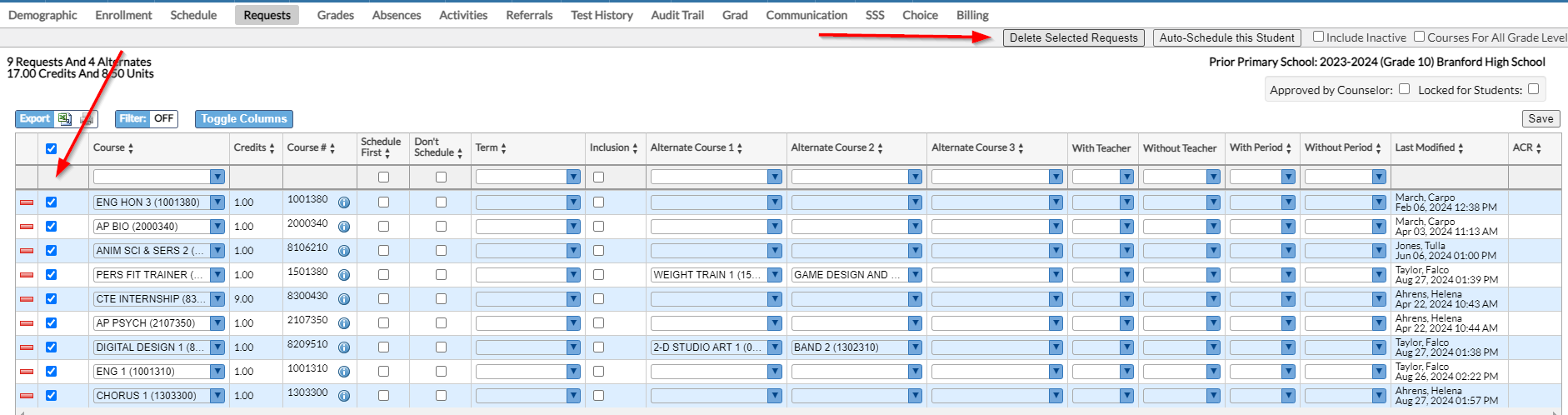
To delete a request, click the red minus sign next to the request you would like to delete. You can delete multiple requests by clicking the check box next to the requests you would like to delete and click the Delete Selected Requests button.
 Request Restrictions
If the master schedule has been built, you can add request restrictions to your student requests. On the student's request screen you have the option of specifying the Term if the student should be scheduled into an Inclusion section, scheduled With a specific teacher, Without a specific teacher, During a specific period, and Exclude a specific period.
Approved by Teacher
This is a read-only field. When using the “Teachers approve course requests” functionality, this check box will be selected to indicate that the teacher approved the course request. For information on how teachers enter and approve course requests click here.
Approved by Counselor / Locked for Students
The Approved by Counselor checkbox allows counselors to indicate that they have reviewed a student’s course requests. After reviewing and approving the course requests, counselors should also lock the request screen for students so they cannot make and more changes by clicking the checkbox Locked for Students.