Builder Reports are used to determine the changes that need to made to the master schedule based on student requests. Builder Reports help assess the demand for particular courses against actual availability. The Scheduler should not be run until most of the Builder Report issues have been resolved.
To access the Builder reports, navigate to Scheduling> Builder Reports.
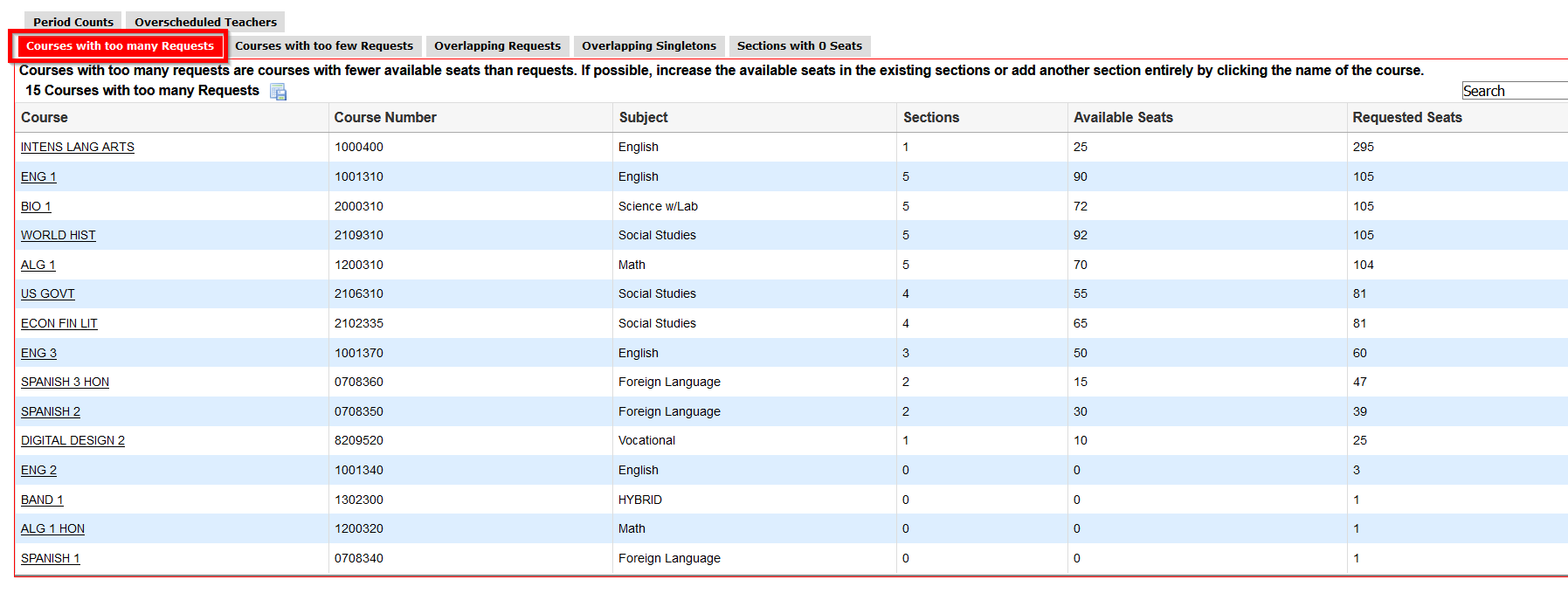
Courses with too many requests
The first report in the group is called Courses with too many requests. This report will show you courses that have more requests than seats available. Click on the course to update seats available or build additional sections.
Courses with too few requests
The next report in the group is titled Courses with too few requests. This is one of the most useful reports because it tells you courses that have less than 80% of the seats filled. You may decide to combine with another class or move the recourses to another area.
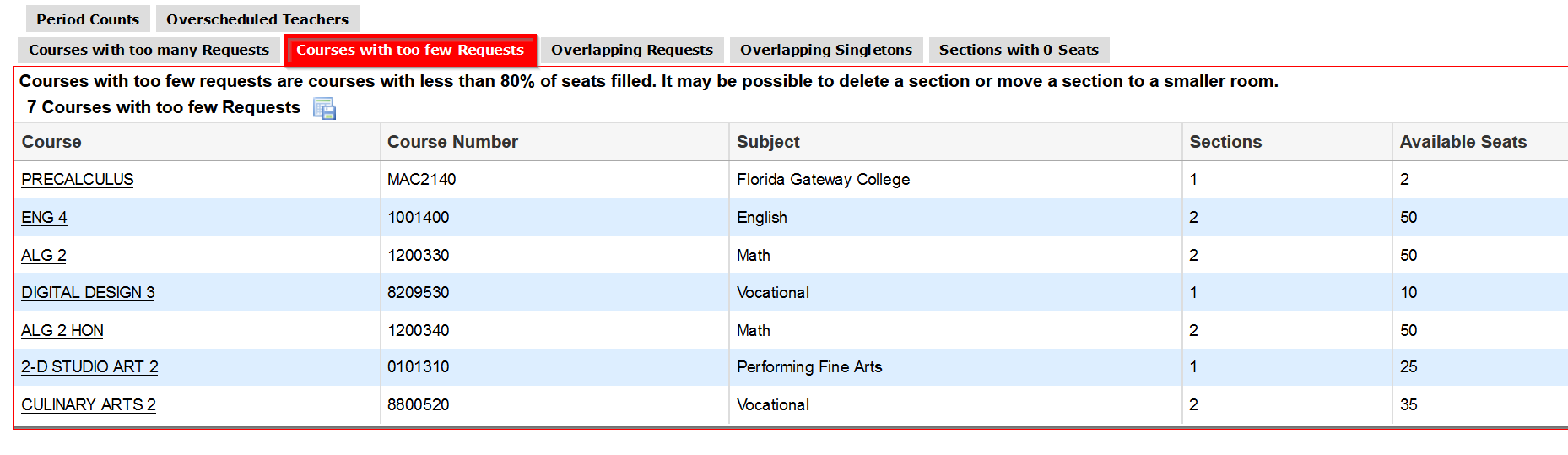
Click on the course to review/modify the sections and seats created for the course selected.
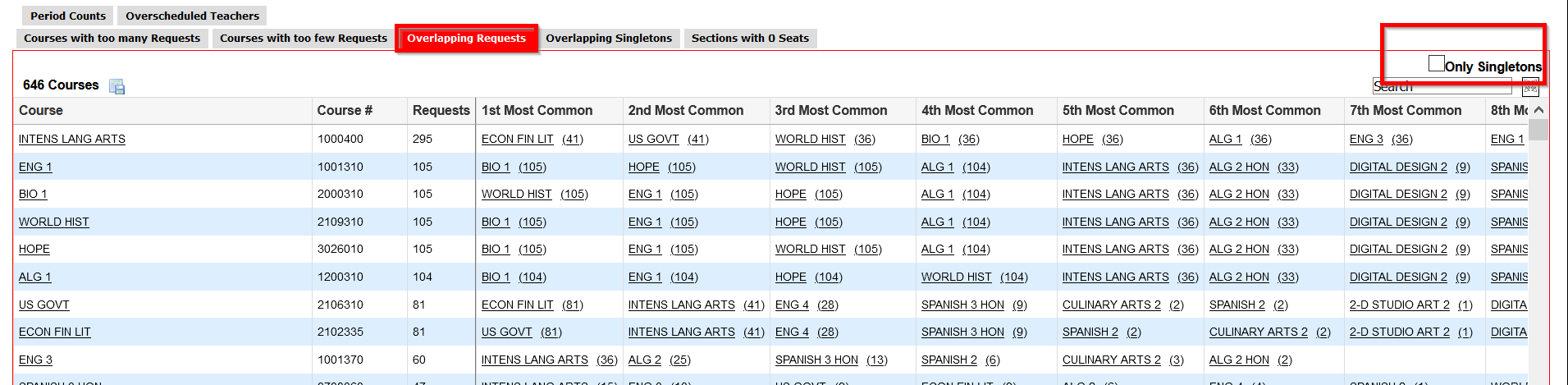
Overlapping Requests
Overlapping requests occur when students request a course that conflicts with another course scheduled at the same time. If possible, move sections to different periods to make the courses available to students. Selecting the Only Singletons check box will only show overlapping requests for courses with only one section built. It is important to review overlapping singletons as these students will not be scheduled into both courses unless one is moved.
Click on the course to view courses and section information for that course. Click on the number of requests to see a list of students who requested the selected course.
Overlapping Singletons
Overlapping Singletons are two courses with only one section that both meet on the same period. Students who request both courses can be scheduled into only one of them. Click the course to add a section or change the period on which it meets.

Sections with 0 Seats
Sections that appear on this report don't have any available seats, so no students will be scheduled for them. Click on the section to add seats.

Period Counts
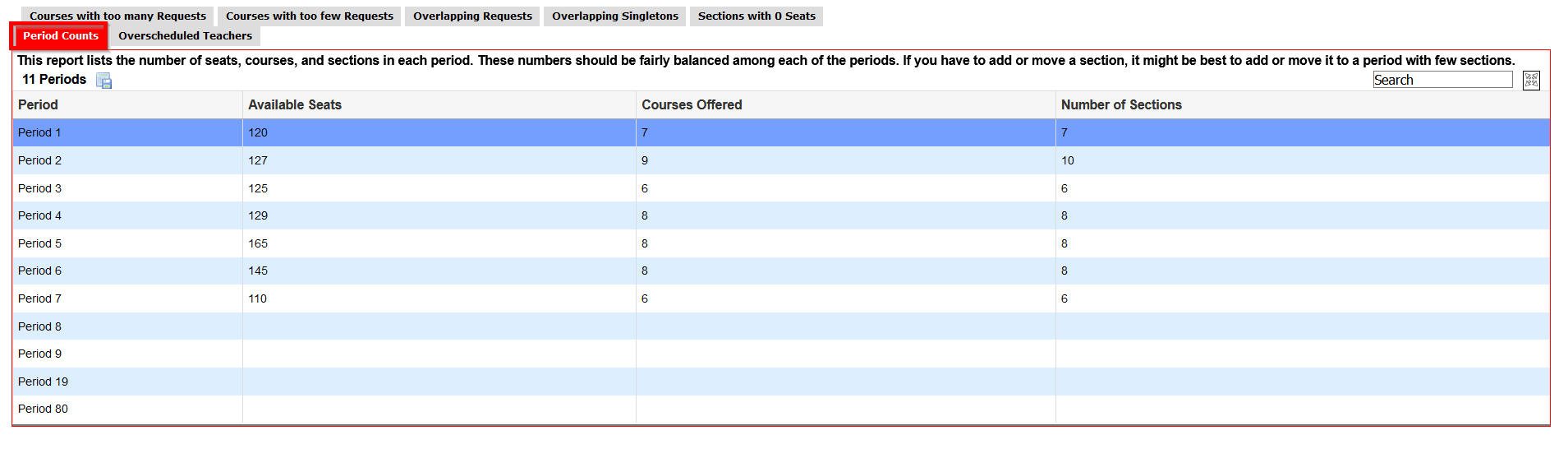
This report gives you a period count summary showing how many seats, courses, and sections assigned for each period. The seats should be evenly distributed between periods.
Overscheduled Teachers
This report will find the teachers who have more than the defined amount of sections assigned to them. Set the number of sections you would like to filter the report by using the pulldown at the top of the page.
You can display this report using three different options:
- Sections Per Day- View of teachers who have more than X sections scheduled in a day.
- Sections Per Period- View of teachers who have more than X sections scheduled in a period.
- Consecutive Periods- View of teachers who have more than X sections scheduled consecutively.
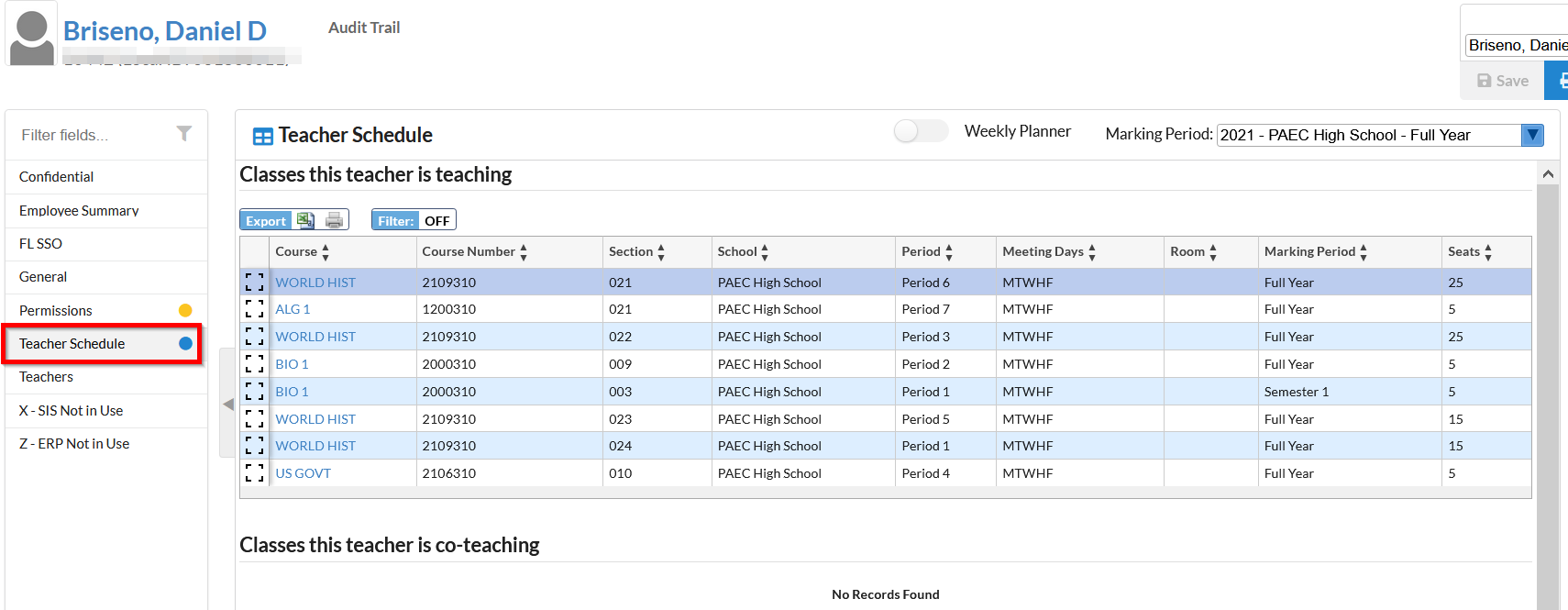
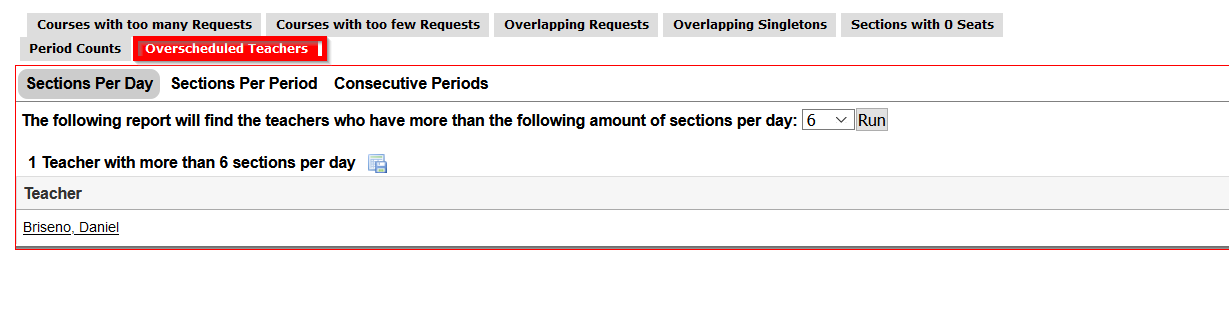 If a teacher is overscheduled, click on the teacher name then from the pop-up screen click on teacher schedule. This screen will show you the classes assigned to them. Here you can click on the course and make changes to resolved the issues.