The Positive Behaviors feature allows teachers and administrators to use positive reinforcement strategies to reward good student behavior. This is accomplished through the assignment of badges in Focus.
Admin View - Positive Behaviors
Administrators can give students badges/rewards to recognize good student behavior/ actions.
Navigate to Discipline >Positive Behavior Awards.
The Positive Behavior Awards screen is where administrators award badges to students and spend badges. Administrators can also review the total badges earned, spent, and the available balance for students. A History is provided for each student as well, with details about the date awarded, the user who awarded the badge, badge title, value, and comment.
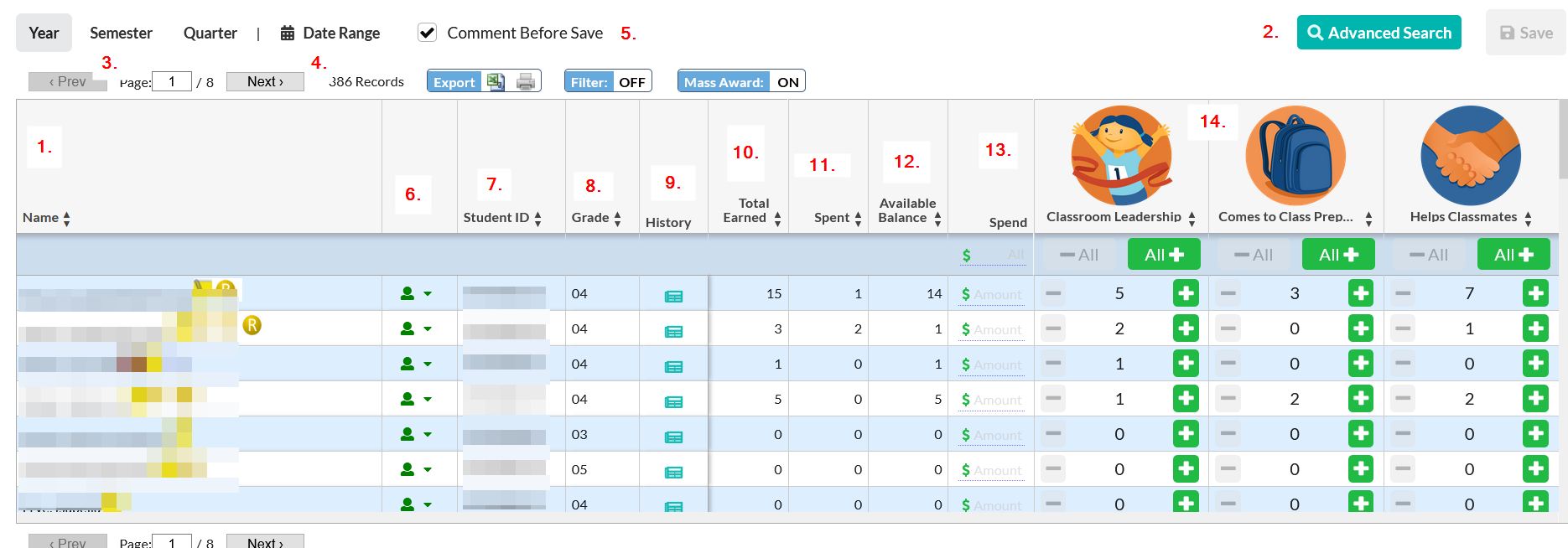
1. All the students at the school selected by default.
2. To refine the list of students, click Advanced Search at the top of the screen.
3. The Year option at the top-left of the screen is automatically selected, displaying the badge data from the start of the school year to date. To view badge data from the beginning of the semester to date, click Semester. To view badge data from the beginning of the quarter to date, click Quarter.
4. To view a custom date range, click Date Range. In the pop-up window, enter the date range by selecting the month, day, and year from each pull-down or click the calendar icons to select the dates from the calendar and click confirm.
5. Deselect the Comment Before Save check box if you do not want to be prompted to enter a comment when adding or spending a badge. Otherwise, a pop-up box will appear asking you to enter a comment for each change.
6. Use the arrow to jump to different student data categories.
7. The Student ID number displays.
8. The student's Grade Level displays.
9. Click on the History icon to display the student's badge history, including the dates awarded, the user who awarded the badge, badge title, value, and comments. Badges can be deleted from a student in the History.
10. The Total Earned column displays the number of badges earned for the period selected in the top right corner of the screen, including both teacher and administrator awarded badges,
11. The Spent column displays the number of badges spent for the period selected in the top right corner of the screen, including both teacher and administrator awarded badges.
12. The Available Balance column displays the balance that is available for the student to spend.
13. Enter the number of badges to spend in the Spend column. *If an amount is entered that is greater than the student's available balance, the amount will auto-correct to equal the student's available balance*. The spent amount will be deducted from the student's available badges.
14. The icons for each possible badge display at the top of the report, each in its own column. Here you can see a breakdown of how many of each badge the student has earned. Click the green + icon in the column of the badge you want to award. Click the red minus - sign if the badge was awarded by mistake and should be removed.