There are many times throughout the school year where you will need to change student schedules. It is important that the student's courses are added/ dropped correctly to ensure accurate report cards, state reporting and teacher access.
Dropping an Existing Course
If a student has attended a class at least once and has a schedule change then the course must be dropped from their schedule to preserve attendance and grade information.
To access a student's schedule navigate to Scheduling> Student Schedule>Search for the student whose schedule you would like to change.
Locate the column titled Dropped. The date you enter here should be the last date the student has or will attend that class. Students are dropped as of midnight of whatever date entered here.
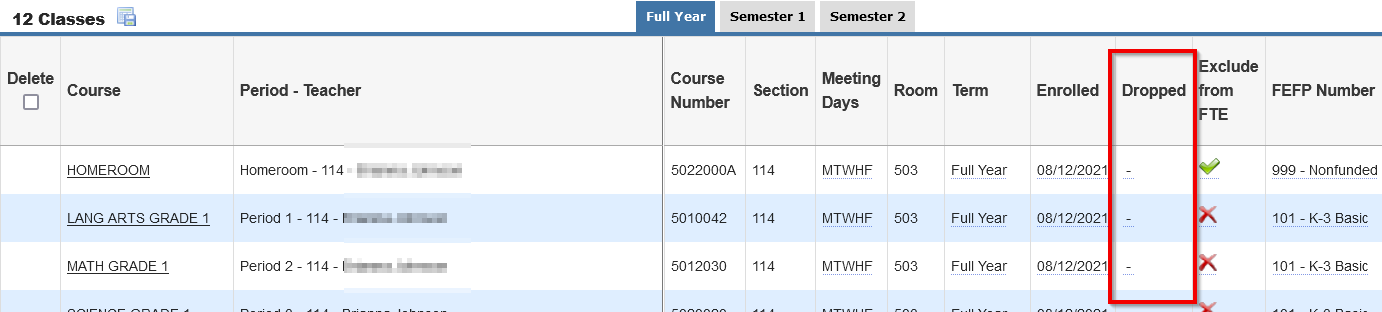
Entering the drop date will inactivate the class for the selected student. This means that the teacher will no longer see this student in their active students list for attendance or grades. They will need to click include inactive to view dropped students.
Once a class is dropped from a student's schedule the class will no longer show on the student's schedule unless the user clicks Include Inactive Courses located at the top of the student schedule screen.
Dropping a Class added in Error
If the student was added to the class by mistake and NEVER actually attended the class than you have the ability to delete that class.
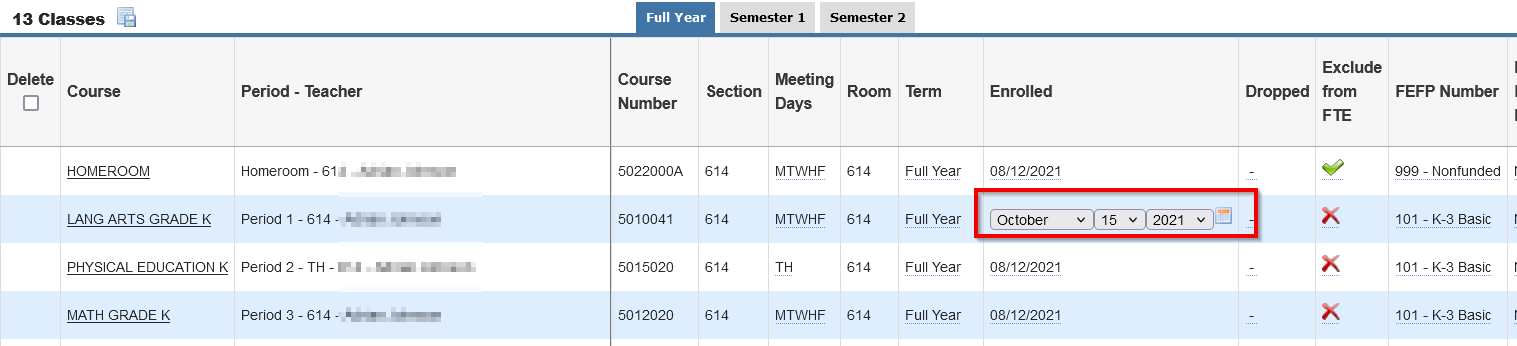
To do this change the enroll date to a date in the future and click Save.
Once saved you will see a delete checkbox at the beginning of the schedule record.
Check the delete checkbox and click save. This will remove the record that was added in error.
Mass Update Schedule Reports
You are able to drop the students entire schedule at once using the mass update option.
From the student schedule, click Mass Update, located in the top right side of the schedule. Mass update options will then appear at the top of the schedule. Use the pull down menu to select the field you would like to mass update, in this case Dropped. Next enter the date you would like populated on each schedule record.
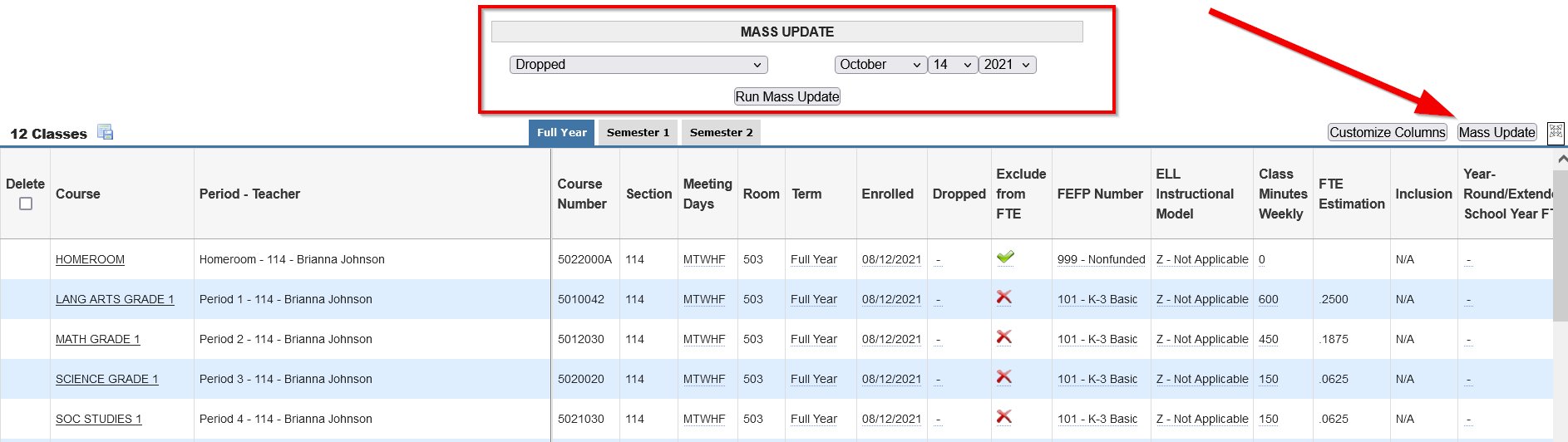
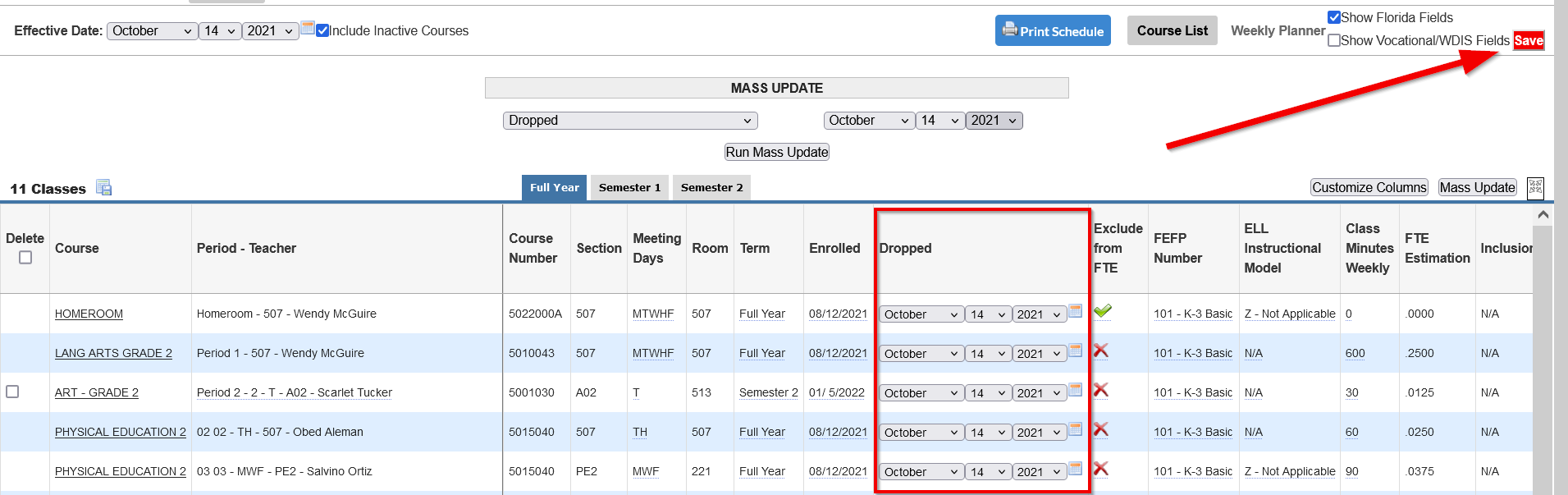
Once you have made your selections click Run Mass Update. All of the schedule record dates will populate with your selection. To save your changes click Save.
Adding a New Course to a Student Schedule
Before adding a class to a student's schedule make sure you know the period, teacher, and start date of the course.
To add a new course to a students schedule navigate to Scheduling> Student Schedule>Search for the student whose schedule you would like to update.
There are two ways you can search for a section to add to the students schedule.
Add a Section or by Searching for a Section to Add.
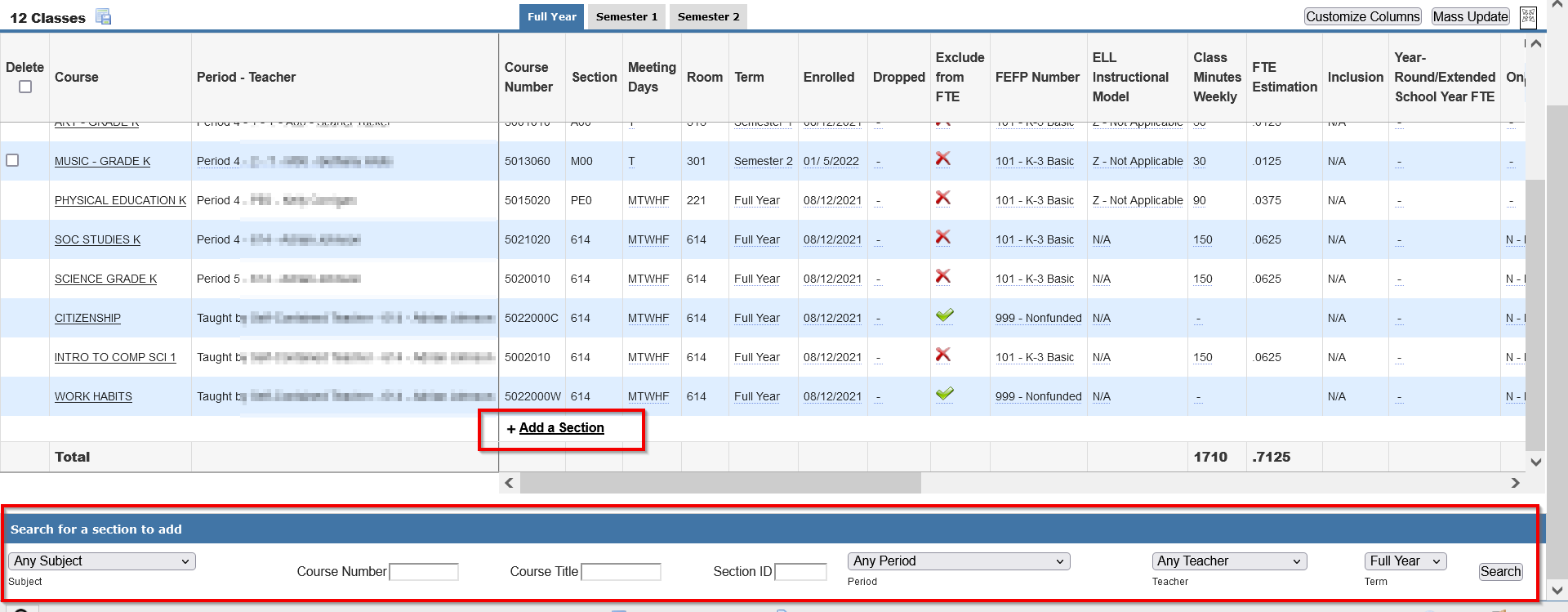
Once you locate the section you would like to add and it is added to the students schedule you will see the class added to the schedule with today's date as the section start date.
If the date needs to be updated click the date field,make the changes needed and click Save.
** Note** the Enrolled and Dropped dates should ALWAYS reflect the dates the student actually attended the class.
At a minimum, it is important that you verify that the Room, Class Minutes Weekly, and FEFP are correct for the selected student.
If you are unsure about the data that should display on the schedule please contact your MIS department.
Package Changes
Many elementary schools use packages for scheduling. Packages link several courses together to make scheduling easy. We have listed a few tips below to help with schedule changes where packages are used.
Even if a student was originally scheduled using a package, changing a students individual schedule will not impact the package or the other students scheduled using the package only the individual student's schedule.
Changing the course selections at the package level will not impact any students schedules that were previously scheduled using the package. It will only impact any students scheduled in the future using that package.