Each student who receives instruction in your school/district must be assigned a schedule that reflects an accurate picture of the instruction they are receiving. Accuracy is very important because the students schedule is used for grades, attendance, testing and is reported to the state for funding.
Courses and Sections Basics
Schedule Viewing- Basic Fields
To view a student schedule, navigate to Scheduling> Student Schedule. Use the search screen to locate the student whose schedule you would like to view.
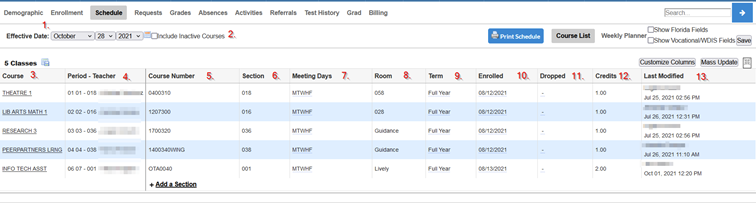
- When viewing a student’s schedule, the Effective Date will default to today’s date. You can change the effective data to view schedule record with an enroll date in the future.
- Use the Include Inactive Courses checkbox to view classes that have been dropped from the student’s schedule.
- The Course column displays the course title assigned to the student.
- The Period-Teacher column displays the period of the day, section id number and teacher assigned to the class.
- The Course Number column displays the course number assigned to the student.
- The Section column displays the section id number assigned to the section of the course the student is assigned.
- The Meeting Days column displays the days of the week the course is scheduled to meet.
- The Room column displays the room the course will be taught in and is an important field that is used to determine class size.
- The Term column indicates the term of the class assigned to the student. Terms are set up in Focus to tell each class when it begins and ends. For example, a Full Year term may be from August 15 through May 29 and Semester 1 term may run from August 15 – Jan 5.
- The Enrolled column displays the date the student first attended the class.
- The Dropped column displays the date the student last attended the class.
- The Credits column displays the number of credits the student will be awarded if they successfully complete the course.
- The Last Modified column shows which user last updated the schedule record along with the date and time they made the modification.
Additional Schedule Fields
The basic schedule view only includes the fields listed and does not include additional state report fields. To view additional fields related to state reporting you must click the box titled Show Florida Fields.
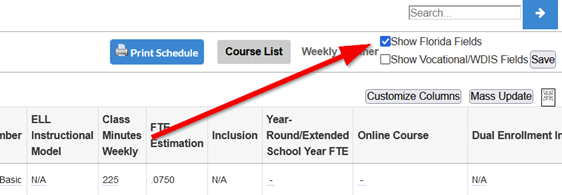
Checking this box will display the following fields:
- Exclude from FTE- When a section is indicated as a “fill” or “for attendance and grades,” but is not a state-reported section, this field needs to be checked. Examples include lunch, homeroom, and travel classes.
- FEFP Number-The FEFP number is used to determine the students funding level. The following values indicate student status on the student schedule:
- 111(Pk-3), 112(4-8), 113(9-12) complete class is Special Education
- 254 – one-on-one aide class and other higher matrix values
- 255 – hospital homebound and other higher matrix values
- 130 – ELL core course (math, science, social students, English, reading if ELL read course)
- 300 – secondary vocational courses (all 8XXX-XXX or 9XXXXXXX and some 7XXXXXXX classes)
- 999- for course records that do not get funded.
- Regular ed classes should be coded with a grade-level appropriate FEFP of 101, 102 or 103.
- ELL Instructional Model -Indicates the student’s ELL status (per DOE) and subsequent instructional model/approach, teachers’ certification, and program funding.
- Class Minutes Weekly- Indicates the total number of minutes per week that the section meets. This value should correspond with the bell schedule, where possible. NOTE: This field cannot be submitted to the DOE blank or with a 0 value, or it will not be accepted.
- Online Course Provider- If this course is an online/virtual course, indicate the online course provider.
- Dual Enrollment Indicator- If the section is enrolling dual enrollment students, the DE indicator needs to be “A” to indicate a college credit course or “C” to indicate an AGE student receiving technical college credit. Not used in Elementary
- Reading Intervention Component- If this section is specifically for students who are all receiving reading intervention instruction, this field needs to be checked.
- PMRN- Progress Monitoring and Reporting Network (PMRN) is sent at the beginning of the school year for the Florida Assessments for Instruction in Reading aligned to the Florida Standards (FAIR-FS). Many schools do not use the PMRN system/FAIR testing anymore.
If you do use PMRN you must mark those classes at the beginning of the year. If you do not have any schools using PMRN you do not need to send it - Course Flag 1 – 4- Course flags indicate additional details about the course section, such as honors, AP, DE, etc.
- Location of Student-This field is checked when the section is a virtual class, indicating that the student is enrolled online. The following values indicate student status on the student schedule:
- N - The student is not located in a public school district facility during the regular school day for the virtual instruction course.
- S - The student is located in a public school district facility during the regular school day for the virtual instruction course, excluding Florida Virtual School courses under contract with the district to be offered on the public school campus in a virtual learning lab
- T - The student is located in a public school district facility taking a Florida Virtual School (FLVS) course in a Virtual Learning Lab during the regular school day for the virtual instruction course. These are FLVS courses under contract with the district to be offered on the public school campus
- Z – Not Applicable
- EOC Exam Term- This field indicates which terms to attach EOC exam records to: either the semester ID or the full year ID. Not used in Elementary
Customizing Columns
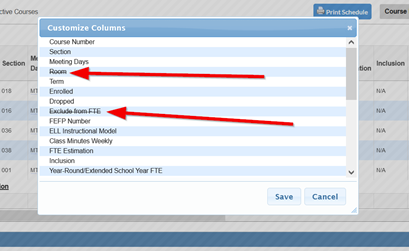
Use the Customize Columns box to select the fields you would like to hide from view on the schedule.
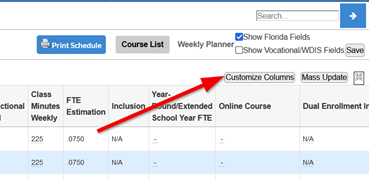
Click the fields you would like to hide and click Save. Focus will strike through the field and hide it until you click the field again to show it. Doing this will only affect your view.